
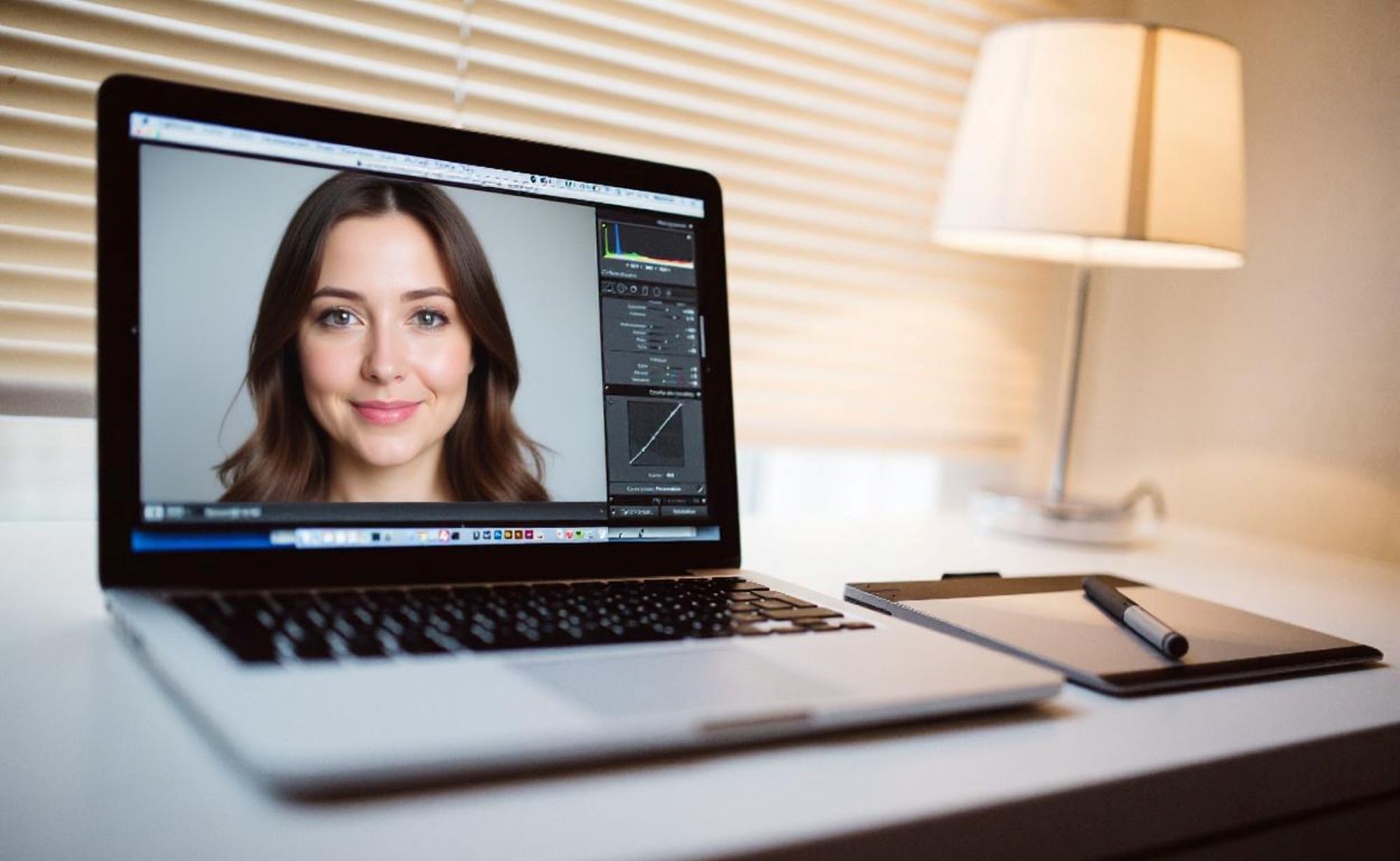
Editing ID images can be tricky — you want them to look professional, clear, and meet official requirements, but without overdoing it. Luckily, Google Photos offers a simple yet powerful set of editing tools right at your fingertips, whether on your phone or desktop. Let’s dive into how you can use Google Photos to make your ID pictures look their absolute best.
Preparing Your ID Images for Editing
Before you dive into editing your ID photos with Google Photos, it’s essential to start with a good, clear base image. The quality of the original photo sets the tone for all the editing work you’ll do later. If your base photo is blurry, too dark, or poorly framed, no amount of editing can fully fix these issues. That’s why it’s important to focus on capturing a high-quality picture that meets the standard requirements for official ID photos. This preparation step will save you a lot of frustration and help ensure the final image looks professional and acceptable.
Taking a Good Photo for Your ID
When taking an ID photo, the basics matter a lot. Start with a plain, neutral background—ideally white or light-colored—to avoid distractions. Make sure the lighting is even and bright enough to illuminate your face without casting harsh shadows. Natural light from a window or soft indoor lighting works best; avoid overhead fluorescent lights that can create unwanted glare or uneven tones. Your expression should be neutral—no smiles or exaggerated facial expressions—since most official ID photos require this standard look.
Using your smartphone’s rear camera, rather than the front selfie camera, is highly recommended. The rear camera generally has better resolution and focuses more accurately, producing a clearer image. Position your phone at eye level and keep the camera steady to avoid blur. Frame your head and shoulders in the shot, leaving some space above your head for cropping later. Taking several shots can help you pick the best one before moving on to editing.
Importing Your ID Image into Google Photos
Once you’ve captured the perfect ID photo, the next step is to upload it to Google Photos for editing. If you have the Google Photos app installed on your phone, simply open the app and tap the “+” or “Upload” button to select your photo from your device gallery. If you’re using automatic backup, the photo might already be uploaded and synced, making it instantly available in Google Photos without extra steps. On a computer, you can visit photos.google.com and drag and drop the image or use the upload button.
Having your ID photo in Google Photos offers a couple of benefits: it keeps your images organized, and it allows seamless editing across devices. You can start editing on your phone and continue on your laptop if you wish. Also, Google Photos backs up your images to the cloud, protecting them from accidental loss. Just make sure you are signed in with your Google account and have enough storage space to accommodate your photos.
Basic Editing Tools in Google Photos
Google Photos offers a straightforward but effective set of editing tools perfect for fine-tuning your ID images. Whether you’re a beginner or more experienced in photo editing, the interface is user-friendly and intuitive. When you open your photo, you’ll find essential tools like crop, rotate, brightness, contrast, filters, and markup, which allow you to make all the necessary adjustments to your image. These basic features help ensure your ID photo looks polished and professional.
The simplicity of Google Photos means you won’t be overwhelmed by options you don’t need. Instead, you can focus on the most important aspects of your photo, like making sure the face is centered, the lighting is correct, and the image is clear. These tools work well on both mobile devices and desktop browsers, giving you flexibility to edit wherever you feel most comfortable.
Overview of the Editing Interface
Once you open your ID photo in Google Photos, look for the edit icon—typically represented by a pencil or sliders symbol. Tapping or clicking this icon opens the editing menu. Here, you will see options such as:
- Crop and rotate
- Adjust (brightness, contrast, saturation, warmth, etc.)
- Filters (preset color and tone enhancements)
- Markup (for drawing or highlighting)
Each of these tools is easy to use, with sliders or buttons allowing you to tweak your image in real time. The interface is clean, with preview windows so you can see changes before applying them. This makes the editing process quick and efficient, ideal for users who want good results without complex steps.
Cropping and Rotating Your ID Photo
Cropping is crucial for ID photos since agencies often require specific dimensions and positioning of the face within the frame. Google Photos allows you to manually crop your image by dragging the corners of the crop box. You should aim to crop the photo so that your full face and the top of your shoulders are visible, with the head centered and not too close to the edges. Many countries specify exact pixel or aspect ratio requirements (like 2×2 inches in the US), so it’s best to check your ID guidelines before cropping.
If the photo is tilted or off-angle, use the rotate tool to straighten it. A level head position is important for official acceptance and for the photo to look natural. You can rotate the image clockwise or counterclockwise in small increments to perfect the alignment. Taking time here ensures your ID photo meets submission criteria without needing to retake the picture.
Adjusting Brightness and Contrast for Clarity
Brightness and contrast are the foundation of a clear and professional ID photo. If the photo is too dark, important facial features may be obscured; if it’s too bright, details can get washed out. Using Google Photos’ adjust tool, you can slide the brightness control up or down until the face is evenly lit and easy to see. Avoid pushing brightness so high that skin tone looks unnatural.
Contrast controls the difference between light and dark areas. Slightly increasing contrast sharpens the edges and makes your features more distinct without introducing harsh shadows. Too much contrast, however, can make the photo look artificial or create unwanted dark spots. Experiment with small adjustments until the photo looks crisp but natural, making sure all your features are clearly visible for ID verification.
Enhancing ID Images Using Google Photos
When it comes to polishing your ID photos, subtlety is key. Google Photos offers several tools to enhance your images without making them look unnatural or overly edited. Let’s break down some of the main enhancements you can apply to make your ID photo clearer, more professional, and visually balanced.
Using Filters Carefully for Natural Look
Filters can be tempting—they promise instant improvements with a single tap. However, for ID photos, using dramatic or heavy filters is a big no-no. Such effects can distort colors, skin tones, and even facial features, which might lead to your photo being rejected by official agencies. Instead, opt for mild filters or Google Photos’ “Portrait” mode, which subtly softens shadows and evens out the lighting on your face without blurring important details. This approach preserves the natural look required for official documents while still improving the overall image quality.
When applying any filter, always compare the edited photo with the original. You want to make sure your face looks like yourself—clear, natural, and professional. Avoid any filter that changes skin tone dramatically or adds unrealistic hues. Keep in mind, the goal is clarity and compliance, not artistic flair.
Adjusting Color Balance and Saturation
Correct color balance ensures your skin tone looks realistic and the background remains neutral. Sometimes photos come out too warm (yellowish) or too cool (bluish), which can affect how your ID photo is perceived. Google Photos allows you to tweak color temperature and saturation to fix these issues. Slightly warming the photo can give a healthy skin tone, but don’t overdo it—your face should look natural, not overly tanned or flushed.
Saturation adjustment controls the intensity of colors. For an ID photo, you generally want to keep saturation low to moderate—this prevents colors from looking cartoonish or artificial. Adjust the sliders until the skin tone appears lifelike and the background doesn’t overpower the subject. Proper balance here can make your photo stand out by looking crisp and professional, without drawing negative attention.
Sharpening Details for Better Visibility
Sharpening enhances the definition of your facial features by increasing edge contrast, making details like eyes, eyebrows, lips, and hair more distinct. In Google Photos, sharpening is a delicate tool: used sparingly, it improves clarity, but overused, it can introduce noise or make your face look unnatural and grainy. Focus sharpening on the areas that matter most—your eyes and mouth—where clarity is crucial for identification.
Remember, sharpening should be subtle enough to maintain a smooth and natural skin texture. Over-sharpening can also exaggerate skin imperfections or create harsh outlines, which is undesirable in official photos. Start with low sharpening values and gradually increase, constantly comparing with the original photo to maintain a professional look.
| Enhancement Tool | Purpose | Recommended Use | Tips |
| Filters | Improve lighting and color tone | Use mild filters or “Portrait” mode | Avoid heavy or dramatic filters |
| Color Balance | Correct skin tone and background color | Adjust warmth and tint slightly | Keep skin tone natural, avoid extreme hues |
| Saturation | Control intensity of colors | Keep saturation low to moderate | Prevent colors from looking cartoonish |
| Sharpening | Enhance facial feature clarity | Apply sparingly, focus on eyes/mouth | Avoid noise or harsh outlines |
Advanced Editing Tips for ID Photos
Beyond basic edits, Google Photos offers a few additional tools that can help refine your ID photos further. These advanced tips will help you get the most professional look possible while adhering to official photo requirements.
Removing Unwanted Background Elements
Although Google Photos doesn’t have a full background removal or replacement feature, you can still minimize distractions by cropping the image tightly around your face and shoulders. This eliminates unnecessary background clutter that might detract from the focus on your face. When cropping, maintain the aspect ratio and size requirements for your ID photo to ensure it’s still valid for submission.
If your photo background is messy or contains shadows, consider retaking the picture with a plain backdrop rather than trying complex edits. Keeping the background simple and clean is often required by official guidelines, so minimal background editing is both sufficient and safe.
Using the “Markup” Tool for Annotations
Google Photos’ “Markup” feature allows you to draw, highlight, or add simple annotations to your photo. While this can be helpful for personal notes or highlighting areas during review, it’s usually not appropriate to submit ID photos with any markings. Most official ID applications strictly prohibit annotations or alterations on the photo.
Use the markup tool cautiously—only for your own reference or if instructed by a professional photo service. Avoid writing or drawing anything directly on the image before submission. Keeping the photo clean and unmarked ensures it meets official standards.
Utilizing the “Portrait” and “Light” Adjustment Features
Google Photos includes specialized tools like “Portrait” mode, which focuses on softening shadows and improving lighting on the subject’s face. This feature can brighten darker areas and add subtle highlights, helping your face look evenly lit and vibrant. Similarly, the “Light” adjustment tool lets you control overall exposure and shadows more precisely.
These features work well for enhancing ID photos without heavy editing. Use them to subtly brighten your face or reduce unwanted shadows, making the photo appear polished and professional. But remember, avoid extremes—too much brightening or lightening can wash out your face or cause glare, which might cause your ID photo to be rejected.