
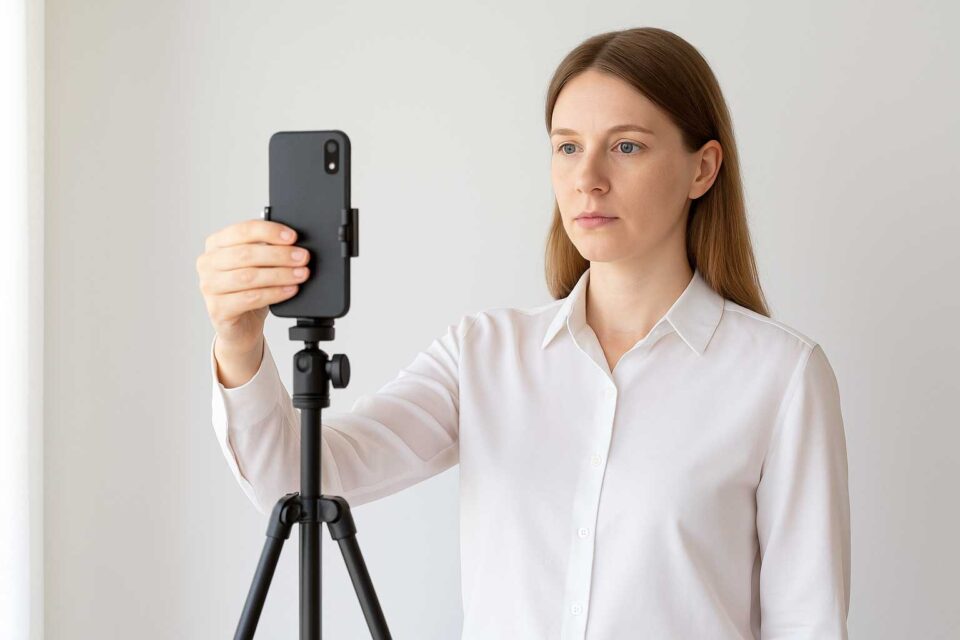
How to Take a Passport or Visa Photo Using Only Your Smartphone (No Editing Needed)
In many cases, passport and visa photos get rejected not because of complicated technical flaws, but due to simple mistakes that could have been avoided from the start. While most people rely on editing tools to fix lighting or framing afterward, it’s often easier to capture the photo correctly straight away — using nothing more than your smartphone camera.
This guide walks you through the exact process of preparing and shooting an ID photo that already meets formal requirements, without needing any post-processing.
1. Make Sure You Know the Photo Requirements
Different authorities may have slightly different specifications, but the fundamental criteria rarely change.
| Requirement | Typical Standard (US / Schengen) |
|---|---|
| Photo size | 2 × 2 in (51 × 51 mm) or 35 × 45 mm |
| Head height | Between 25–35 mm |
| Background | Solid white or very light gray |
| Expression | Neutral, both eyes fully visible |
| Orientation | Facing forward, head straight |
| Lighting | Even, no shadows |
| File quality | Sharp, no noise or compression artifacts |
Before starting, go to the official website of the issuing authority and confirm any additional rules (e.g., allowed clothing, glasses policy, beard acceptance, etc.).
2. Prepare the Space Before Touching the Camera
The key to avoiding corrections later is setting up the environment properly.
Ideal Scene Setup:
- A plain white or bright matte wall (not glossy, not patterned).
- Natural daylight from a window directly in front of you or slightly to the side.
- Stand 20–30 cm away from the wall to prevent shadows.
- Place the phone at eye level using a stable surface or tripod.
- Keep the room lighting consistent — no spotlights, no overhead lamps.
| Setup Element | What Works Best |
|---|---|
| Wall | Plain, smooth, white |
| Light source | Window light, indirect sunlight |
| Distance from wall | 20–30 cm |
| Phone placement | Eye level, stable |
| Accessories | None on the wall, no furniture behind |
Quick test: Stand in front of the wall and look for shadows under your chin or behind your head. If you see darker spots — reposition until the lighting is uniform.
3. Camera Settings and Shooting Technique
| Camera Setting | Recommendation |
|---|---|
| Camera type | Rear (main) smartphone camera |
| Resolution | Maximum available |
| Flash | Off |
| Zoom | Do not use – move the phone instead |
| Timer | 3–10 seconds |
| Stabilization | Tripod or steady surface |
Ideally, ask another person to take the photo. If not possible, use a timer to avoid movement.
4. Correct Body and Head Position
- Stand naturally; no leaning, slouching, or head tilt.
- Keep your shoulders relaxed.
- Look straight at the lens.
- Face must be fully visible.
- Mouth closed; expression calm and neutral.
- Hair should not cover eyes or eyebrows.
| Do | Avoid |
|---|---|
| Look forward | Tilted head |
| Keep eyes open | Squinting |
| Neutral expression | Smiling or raised eyebrows |
| Relax shoulders | Leaning toward camera |
| Tie back long hair | Covering eyes with hair |
If you wear glasses, make sure:
- No reflections,
- No tinted lenses,
- Frames do not cover the eyes.
5. Correct Framing Before Shooting
Instead of using zoom, step back or move forward to adjust framing.
+-------------------------------+
|         (Space above)         |
|             ▢ Head            |
|                               |
|         Shoulders here        |
+-------------------------------+
The face should cover roughly 70–80% of the vertical frame, leaving some room above the head.
Turn on gridlines if available — align your eyes approximately with the upper third.
6. Take Several Photos (Not Just One)
Even if the first picture looks good, take at least 5–7 shots, then compare:
| Check | What to Look For |
|---|---|
| Lighting | No shadows, natural skin tone |
| Sharpness | Eyes, mouth, and hair clearly visible |
| Head alignment | Straight, centered |
| Background | One solid tone |
| Image quality | No noise or motion blur |
If something feels slightly off, it probably is. Taking another minute now saves days of rejection later.
7. Final Self-Check Before Submission
| Element | Should Be |
|---|---|
| Face area | 25–35 mm height |
| Expression | Neutral |
| Eyes | Fully visible |
| Resolution | Clear, no distortions |
| Orientation | Upright, no tilt |
| File format | Correct size and resolution per authority |
If you need small adjustments (crop, brightness), use only official tools or basic editors with minimal interventions. For more guidance, refer to the article “How to Use Google Photos to Edit ID Images”.
Additional Helpful Tips
- Avoid wearing bright colors or patterned clothing.
- Remove any jewelry that may reflect light.
- If the wall is slightly off-white, place a matte A2 or A1 sheet of paper behind.
- Use rear camera instead of selfie camera — it’s usually of higher quality.
- Try recording a short front-facing video and take a still frame from the best moment.
Summary
Taking a passport or visa photo at home using only your smartphone is absolutely possible — provided you focus on preparation instead of editing. A flat white background, proper distance, natural daylight, no shadows, and a correctly framed shot are usually enough to meet official requirements right away.
Once you capture a good-quality image initially, you rarely need further adjustments.
If your photo still requires minor correction, you can use the Google Photos method described in the earlier guide on the site.